
Ever tried to access a region-locked app, protect your privacy while browsing, or just test a location-based feature — only to realize your Android phone stubbornly broadcasts your real GPS coordinates? You’re not alone.
Knowing how to change location on Android is more useful than most people think. Whether you’re a developer testing a geo-dependent app, a privacy-conscious user, or someone who just wants to access content from another country, there are real, working methods to get it done. And no, you don’t need to be a tech wizard.
In this guide, we’ll walk you through the clearest options available — from built-in Android settings to dedicated tools like Locashift that make the whole process effortless.
Why Would You Want to Change Your Location on Android?
Before diving into the how, it’s worth understanding the why. Location data is everywhere on your Android device — apps read it constantly, sometimes without you actively noticing.
Here are the most common reasons people look to change their Android location:
- Privacy protection: You don’t want every app you install to know exactly where you live or work.
- Accessing geo-restricted content: Some apps, games, or streaming libraries are only available in specific countries.
- App development & testing: Developers need to simulate different locations to test geo-based features reliably.
- Playing location-based games: Games can depend on GPS — sometimes you just want to explore a different area from your couch.
Whatever your reason, the good news is Android gives you more flexibility than most people realize.
Method 1 — Use Android’s Built-In Location Settings
The simplest starting point is Android’s own location settings. While you can’t fake your GPS coordinates here, you can control which apps have access to your location and how precisely they see it.
Here’s how to manage it:
- Go to Settings → Location
- Toggle location on or off entirely, or tap App permissions to control access app by app
- For supported apps, switch from Precise location to Approximate location
This won’t fool a GPS-dependent app, but it’s a solid first layer of control — especially for apps that just need a rough area rather than your exact address.
One thing to keep in mind: this method limits location sharing but doesn’t change your location to somewhere else. For that, you’ll need to go a step further.
Method 2 — Enable Developer Options and Use a Mock Location App
Android has a built-in feature called mock location, tucked away in Developer Options. This is the native way to override your GPS coordinates and feed apps a different location entirely.
Here’s how to unlock it:
- Go to Settings → About Phone
- Tap Build Number seven times — you’ll see a message saying « You are now a developer »
- Go back to Settings → Developer Options
- Scroll down to Select mock location app and choose your preferred tool
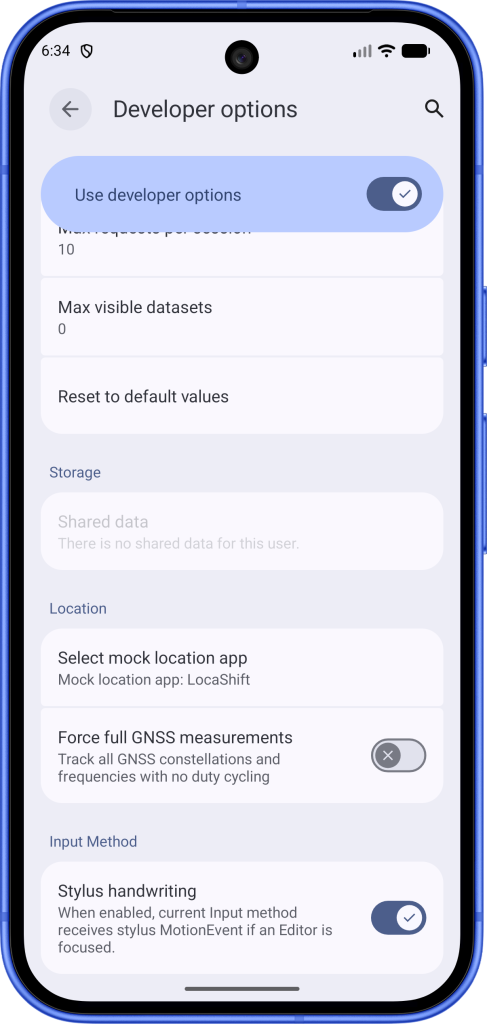
This method is powerful, but it has a catch: you need a reliable mock location app to actually set the coordinates. That’s where dedicated tools like Locashift come in.
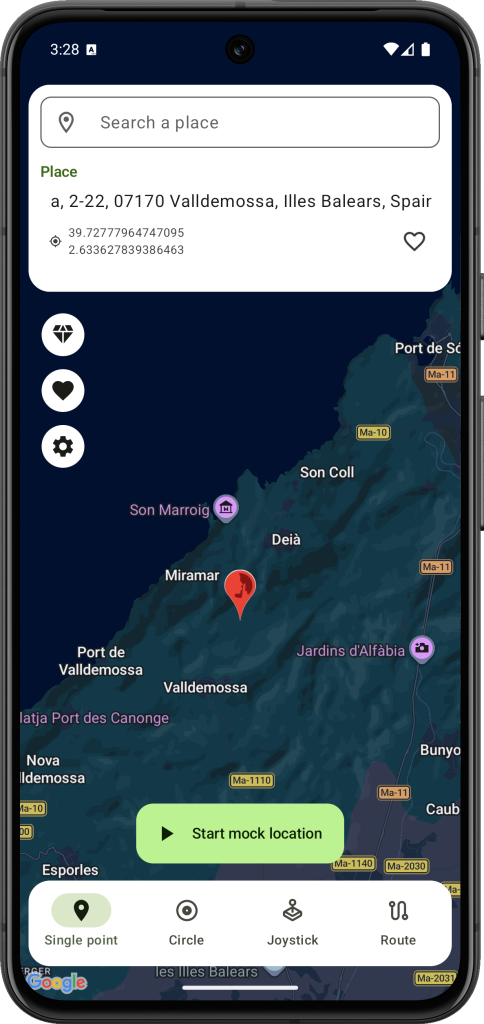
Locashift integrates directly with Android’s mock location system. Once you’ve enabled Developer Options and selected Locashift as your mock location provider, you can drop a pin anywhere in the world with a clean, intuitive map interface — no command lines, no complicated configurations.
How Locashift Makes It Even Simpler to Change Location on Android
Most mock location apps are either too technical or too limited. Locashift was built specifically to fix that.
With Locashift, you can:
- Search for any address or city and teleport your GPS there instantly
- Simulate movement along a custom route — perfect for fitness apps or location-based games
- Save favorite locations so you can switch between them in seconds
The setup takes under two minutes. Enable Developer Options, select Locashift as your mock location app, and you’re ready to go. No rooting required.
Whether you’re a developer running location tests across different cities, or a regular user who just wants a bit more control over their digital footprint, Locashift handles it cleanly.
Important Things to Know Before You Spoof Your Location
Changing your GPS location on Android is legal in most countries and perfectly safe when used responsibly. That said, a few things are worth keeping in mind:
- Some apps detect spoofing: Banking apps, certain games, and enterprise tools sometimes check for mock location flags.
- VPNs complement location spoofing: Your GPS coordinates are just one piece of your digital identity. Combining a GPS spoofer with a VPN gives you much stronger privacy overall.
- Developer Options are powerful: Once unlocked, be careful not to change other settings in Developer Options unless you know what they do.
Conclusion
Changing your location on Android doesn’t have to be complicated. With the right approach — whether that’s tweaking your privacy settings or using a dedicated app like Locashift — you can take full control of where your phone says you are.
The most flexible and user-friendly method? Enable mock location through Android’s Developer Options and let Locashift do the heavy lifting. It’s fast, intuitive, and doesn’t require any technical background.
Ready to take your location into your own hands? Download Locashift today and change your Android location in under two minutes.