Ever wished you could be somewhere else — at least as far as your phone is concerned? Whether you want to protect your privacy, test a location-based app, or just have some fun with geography-based games, knowing how to enable mock location on Android is a surprisingly useful skill.
The good news: it takes less than five minutes. Here’s exactly how to do it.
What Is Mock Location and Why Would You Need It?
Mock location — also called GPS spoofing — lets your Android device report a fake location to apps instead of your real one. Your phone broadcasts a set of coordinates you choose, not the ones from actual GPS signals.
People use it for all kinds of legitimate reasons:
- Privacy: Stop apps from tracking your real whereabouts.
- Gaming: Play location-based games like Pokémon GO from your couch.
- App testing: Developers simulate different locations without leaving their desk.
- Travel planning: Preview how apps behave in cities you’re about to visit.
With an app like LocaShift, you can teleport your GPS location anywhere in the world with just a few taps, no root access required.
Step 1: Enable Developer Options on Your Android Device
Before you can enable mock location on Android, you need to unlock a hidden menu called Developer Options. Don’t worry — it sounds technical, but it’s a standard Android feature anyone can activate.
Here’s how:
- Open the Settings app on your Android phone.
- Scroll down and tap About phone (or About device on some models).
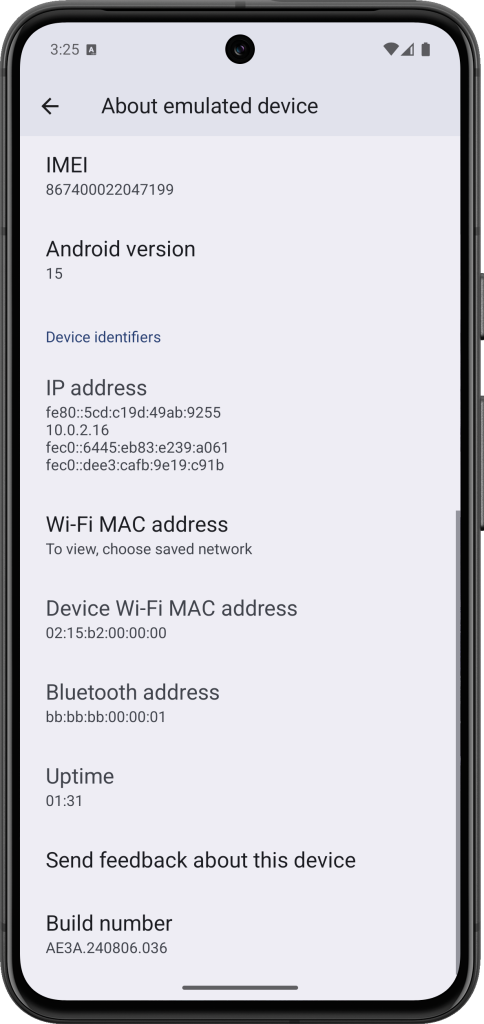
- Find Build number — it’s usually near the bottom of the list.
- Tap Build number seven times in quick succession.
- You may be asked to enter your PIN or password.
- You’ll see a message saying: « You are now a developer! »
Developer Options is now unlocked and visible in your main Settings menu, typically just above or below « About phone. »
Step 2: Select a Mock Location App in Developer Options
Now that Developer Options is enabled, it’s time to allow a third-party app to override your GPS signal.
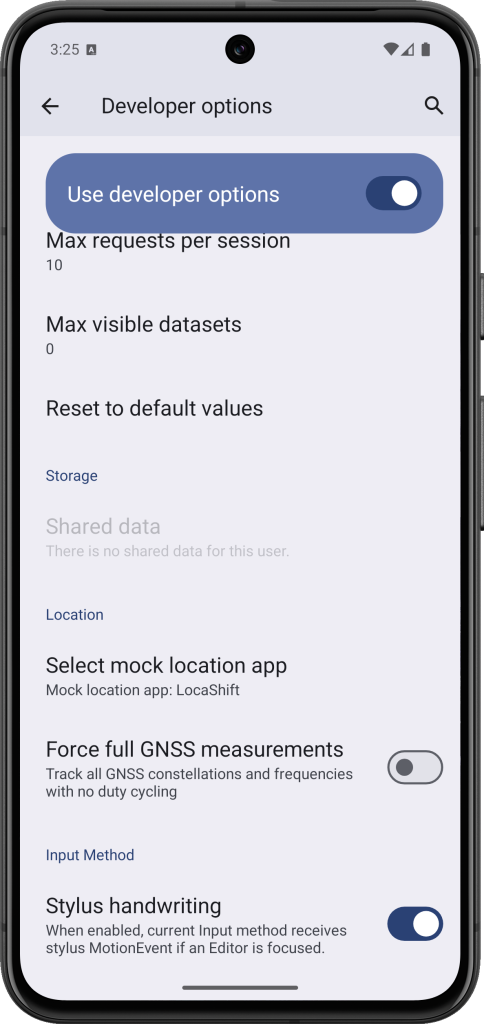
- Go back to Settings and tap Developer Options.
- Scroll down until you find Select mock location app.
- Tap it — you’ll see a list of installed apps that are eligible.
- Select LocaShift from the list.
If LocaShift doesn’t appear yet, make sure you’ve installed it first from the Google Play Store, then come back to this step.
This step tells Android to trust LocaShift as the source of your location data. Without it, even if the app is running, your real GPS coordinates will still be used.
Step 3: Set Your Fake Location with LocaShift
With mock location enabled and LocaShift selected, you’re ready to go.
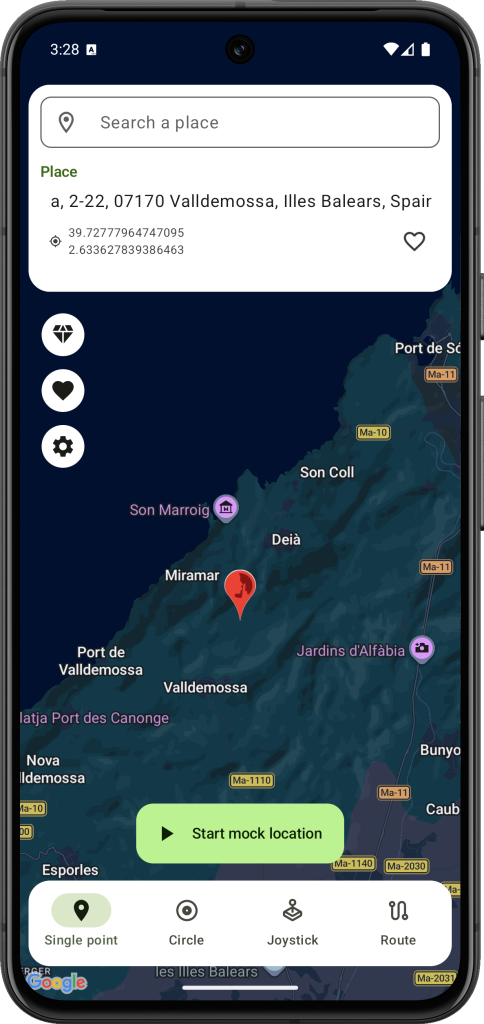
- Open LocaShift.
- Search for any city, address, or point of interest on the map.
- Drop the pin on your desired location.
- Tap Start to activate the spoof.
Your device will now report that location to every app that checks your GPS — from maps and social media to dating apps and games. You can change or stop your fake location at any time directly from LocaShift’s interface.
Some apps use additional methods to verify location (like Wi-Fi triangulation or IP checks). For best results, use LocaShift alongside a VPN to ensure full consistency across all location signals.
Troubleshooting: Mock Location Not Working?
If your fake GPS isn’t taking effect, here are the most common fixes:
- LocaShift isn’t selected: Double-check that it’s set as the active app under Developer Options → Select mock location app.
- Location accuracy mode: Go to Settings → Location → and switch to Device only (GPS only). Other modes can override mock data.
- App uses additional verification: Some apps detect spoofing. Check LocaShift’s settings for advanced anti-detection features.
- Android version differences: The steps above apply to Android 6 and above. On older devices, the menu names may vary slightly.
Start Spoofing Your Location Today
Enabling mock location on Android is straightforward once you know where to look. Unlock Developer Options, select LocaShift as your mock location provider, and you’re in control of your GPS — wherever you actually are.
LocaShift makes the whole process clean and simple, with an intuitive map interface and no technical know-how required. Whether you’re protecting your privacy or just exploring new possibilities, it’s one of the most versatile tools you can have on your Android device.
Download LocaShift on the Google Play Store and take control of your location today.